Spotify Music Library:
How to Backup & Restore
To keep your Spotify music data safe, AudiFab now features a built-in Backup & Restore tool for Spotify Music Converter and Music One users. Whether you’re reaching high conversion limits or just want to protect your playlists, this tool helps you securely save and recover your music library anytime.
Part 1: Backup Your Spotify Music Library to PC/Mac via AudiFab
By exporting your library structure, you can safeguard your followed artists and playlists from unexpected account restrictions.
Step 1: Run the latest version of AudiFab and choose Web Player mode.
Step 2: Log in to your Spotify account to access your music library.
Step 3: Click the three-dot menu next to "Open Web Player" or "Pop Out Player".
Step 4: Select "Back Up Spotify Music Library" from the dropdown menu.
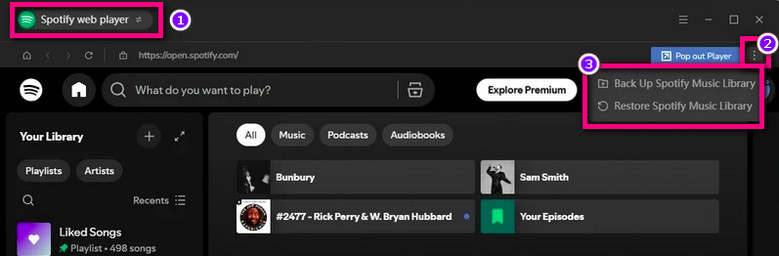
Step 5: Follow the on-screen instructions to save the backup file to your computer.
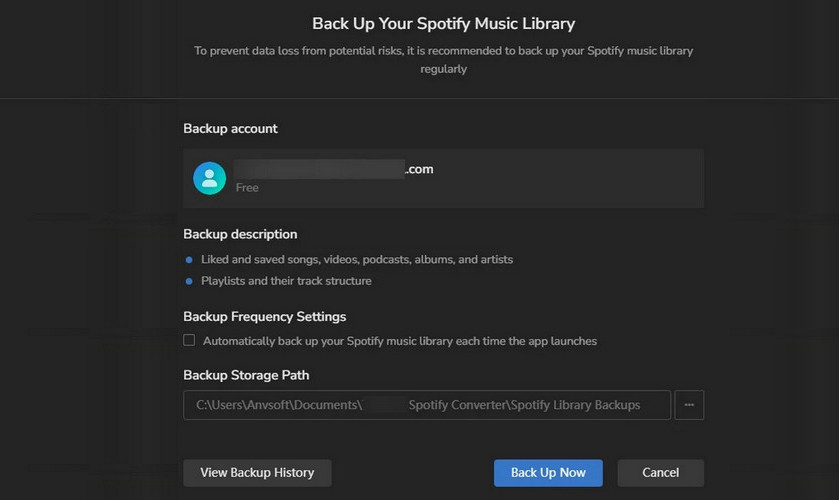
Part 2: Restore Your Spotify Music Library via AudiFab
If you need to switch accounts or recover lost playlists, follow these steps to import your backup.
Step 1: Start AudiFab and switch to Web Player Mode.
Step 2: Sign in to the Spotify account where you wish to restore the data.
Step 3: Click the three-dot menu beside Open Web Player or Pop-out Player.
Step 4: Choose "Restore Spotify Music Library".
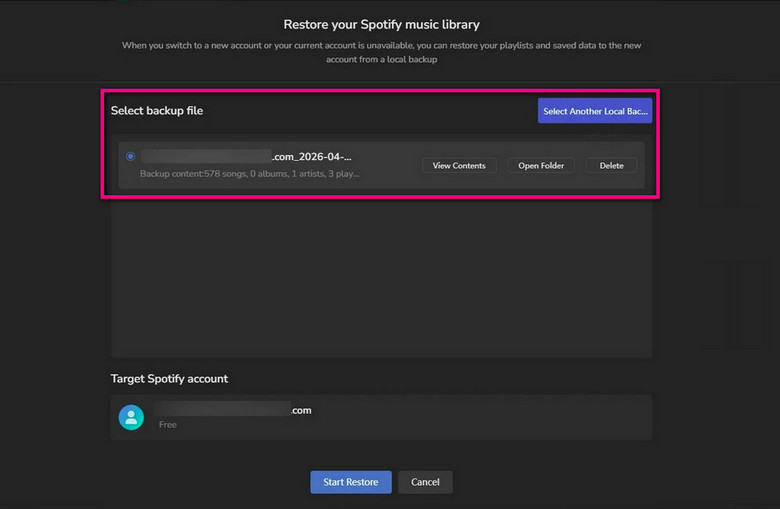
Step 5: Browse and select the backup file previously saved on your local drive.
Step 6: AudiFab will automatically restore your tracks and playlists to your current Spotify account.
Contact Us
If you have any other questions, please send an email to our support team at [email protected]