[1] Click the Register icon in the bottom left corner and you'll then see a pop-up registration dialog.
[2] Fill in the blanks with your registered e-mail address and the license you get after your purchase.
[3] Click the Register button on the right to finish the registration.
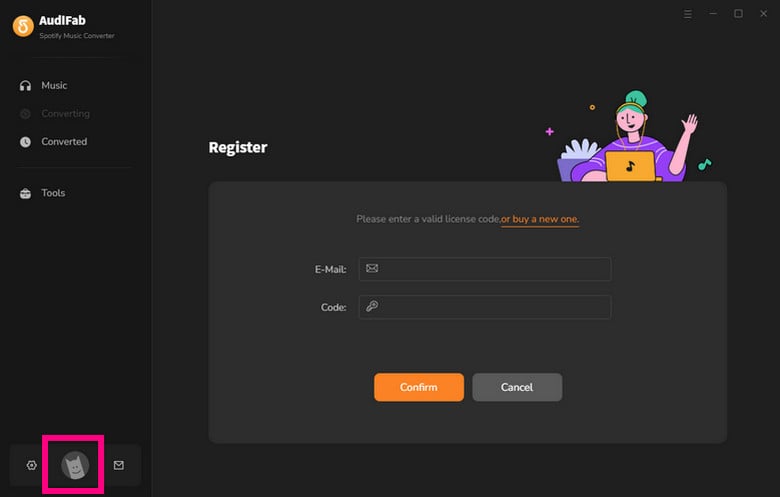
AudiFab Spotify Music Converter enables users to convert the first minute of each audio for sample testing. You need to purchase a license to unlock the full version.
[1] Please confirm that the program you have installed matches the product and version you purchased — AudiFab Spotify Music Converter.
[2] Please check that the registration code is exactly the same as the one you received in the purchase confirmation email. Avoid extra spaces or any typing errors.
[3] One registration code can only be used on one device. If it has already been activated on another device, please log out / deactivate it on the previous device first, then try activating it again on the current device.
[4] If the above steps still do not solve the problem, please contact our support team at [email protected] for further assistance.
All subscription products are automatically renewed by default. When you get the renewal confirmation, you need to re-register the program with the new license.
Just go to the registration dialog, click Change Account and complete the new registration.
AudiFab Spotify Music Converter supports converting Spotify songs, albums, playlists, audiobooks, podcasts, and radio content to MP3, AAC, WAV, FLAC, AIFF, or ALAC. For video content, it can convert Spotify music videos and podcast videos to MP4.
[1] If you'd like to get the highest output audio quality, please select Record Mode.
[2] If you'd like to convert music more fluently, please select Intelligence Mode.
[3] If you'd like to convert at a faster speed, please select YouTube Download mode.
Open AudiFab Spotify Music Converter and click the Settings icon in the bottom left corner. Under the Output Organized option, you can choose how the converted files are organized:
• Playlist
• Artist
• Album
• Genre
• Year
• Disc Number
• New Folder Level (/)
You can also combine multiple levels (for example: Artist → Album or Playlist → Year). If you clear all tags, the files will be saved directly in the output folder without any subfolders.

If you want to download the songs in full volume, just go to the Settings in Spotify and disable the "Set the same volume level for all songs“ button.
For Mac users, downloading songs through the Spotify App is limited to 1X conversion speed. To enjoy up to 40X faster conversion, we recommend using the Spotify Web Player Mode, which significantly speeds up playlist downloads.
Please try the suggestions below to check whether the issue can be fixed:
Ⅰ. Please confirm that the source files can be played normally in Spotify.
Please open Spotify and check whether the songs you'd like to convert can be played normally in Spotify.
Ⅱ. Should you encounter any of the situations as described below, please try the detailed steps to check whether the issue can be fixed:
[1] The songs play for about 20 seconds in Spotify and then skip to the next song for converting and end up with “conversion failure”.
Step 1. Please check whether the system is connected to any audio output device. If it is, please disconnect the external audio device (including the audio devices connected by Bluetooth, like speakers or headphones).
Step 2. Restart your computer and convert the songs again.
[2] Conversion progress for a single song performs normally but fails when it is almost completed.
Solution: Reset Documents Permissions.
For macOS10.15 users, please check System Files → Security & Privacy to see if Files and Folders has been granted access to the relevant Documents directory. If it's not found here, please perform the reset operation.
Search “Terminal” in the Finder and open it up. In the Terminal application, execute the following command to reset the access permissions of Documents.
tccutil reset SystemPolicyDocumentsFolder "com.audifab.spotifyconverter"
There will be a pop-up window to request permissions when AudiFab is launched next time.
[3] For other situations, please go to Help in the Menu bar and select Uninstall the Recordinig driver, and then reboot your Mac for a try.
To help protect your Spotify account, avoid using high-speed recording methods and select 1X Conversion Speed in AudiFab for real-time recording. For added peace of mind, you can also regularly back up your Spotify music library so you have a copy of your playlists and saved music if your account becomes inaccessible.
To back up your Spotify music library, open AudiFab in Web Player mode, log in to Spotify, click the three-dot menu, and select Back Up Spotify Music Library. Follow the on-screen instructions to save the backup file to your computer.
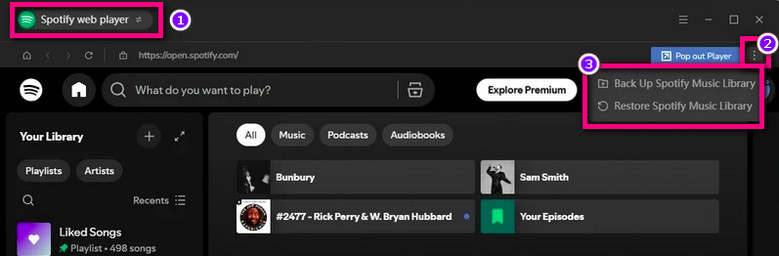
For detailed instructions, see our guide on how to back up and restore your Spotify music library.
Please update the program to the latest version. We recommend using the Spotify Web Player mode (Click "Swith to Web player" in the AudiFab interface) temporarily. Our development team is working to fix the issue.
Please email us at [email protected] with this info:
- Using Spotify Free or Premium account?
- When was your Spotify account created? Is it a new or old account?
- Which region is your Spotify account being used in?
AudiFab supports download Spotify lossless audio locally. Please follow these steps:
- Turn on lossless audio in the Spotify app: Log in Spotify Premium > Profile > Settings & Privacy > Media Quality > Lossless.
- In AudiFab, select Spotify App mode. Go to Settings, set Record Mode as the Conversion Mode and Recommend as the Output Format.
- Start conversion to download and keep Spotify lossless audio forever.
Explanation: This is a normal step for the program to obtain necessary permissions on new M-series Mac chips and is not an error.
Solution: Enter your Mac password to authorize the audio processing function.
Please try the following common solutions first:
1. Update to the latest version
Go to Menu → Check for updates, or download the newest version from the Download page.
2. Switch conversion modes
• Switch between App mode and Web Player mode.
• Go to Music Settings → Conversion Mode and try switching between Record Mode, Intelligent Mode, and YouTube Mode.
3. Clear program cache
• Basic: Menu → Clear Caches
• Thorough (Windows): Delete the folder C:\Users\USERNAME\AppData\Roaming\AudiFab Spotify Music Converter, then restart the program.
• Thorough (Mac): In Finder go to ~/Library/Application Support/, delete the corresponding program folder, then restart.
4. Check account & network
• Confirm your streaming account can log in normally in a browser and has an active subscription.
• Turn off or switch VPN / proxy and try again.
5. Still not solved?
Go to Menu → Feedback, clearly describe the problem, the steps you have already tried, and the results. Please also attach:
- Screenshots or a short video of the issue
- Program logs
- (If possible) the original music/video link and login cache
Our support team will analyze the information and reply as soon as possible.