6 Best AAX to MP3 Converters in 2026 (Desktop, Online & Open-Source)
We tested the best AAX to MP3 converters for desktop, online, and open-source use, so you can convert your audiobooks without trial and error.
We tested the best AAX to MP3 converters for desktop, online, and open-source use, so you can convert your audiobooks without trial and error.
AAX is the format Audible uses for downloaded audiobooks, with audio locked to the purchasing account. Protected AAX files won't play in regular media tools like VLC or common web players, so you'll need a third-party tool to convert AAX to MP3 for playback on any device.
There are three methods to convert an AAX file to MP3. Some tools process the file independently, some require you to log into your Audible account to fetch titles, and others work with your 8‑character activation code. We tested all six converters featured in this guide using genuine Audible AAX files, so you can choose the option that matches your preferred workflow.
⚖️ Disclaimer This guide is for informational purposes only. Convert only audiobooks you have purchased and are authorized to use for personal listening, and follow Audible's Terms of Use in your region.
| Converter | Platform | Sign-in or code needed | Batch size | Output formats | Chapter support | Cover art / metadata |
|---|---|---|---|---|---|---|
| AudiFab | Desktop (Windows, Mac) | Local files: None; Library access: Audible sign-in |
Unlimited batch | MP3, M4A, M4B | Chapters in M4B only | ✅ |
| Audible Tools | Online | Activation code | Batch conversion | MP3, M4B, FLAC | Chapters in M4B only | ✅ |
| MP3AudioConverter.com | Online | Activation code | 10 files / 50MB each | MP3 | ❌ | ⚠️ Title tag only |
| DragDropDo | Online | None (unprotected files only) | Single file, up to 20GB | MP3 | ❌ | ❌ |
| Libation | Open source (Windows, Mac, Linux) | Audible sign-in | Whole library at once | M4B, MP3 | Chapters in M4B only | ✅ |
| AAX Audio Converter | Open source (Windows) | Activation code | Batch conversion | MP3, M4A, M4B | Chapters in M4B only | ✅ |
💡 Quick pick
| Recommend Level: | ★★★★★ |
| How To Access: | https://www.audifab.com/best-music-converter.html |
| Best for: | Windows and Mac users who want protected AAX converted to MP3 with no sign-in and no activation code, keeping their chapters and cover art. |
AudiFab AAX to MP3 Converter is a desktop app for Windows and Mac that handles AAX files in two different ways. If the AAX file is already on your computer, you can add it to the app and convert it without an Audible sign-in or activation code. If you haven't downloaded the audiobook yet, you can sign in to Audible from inside the app, access your library, and download and convert the book in one workflow.
In our test, three protected AAX books converted in a single run, with their original duration, title, artist, and cover art intact. AudiFab supports three output formats — MP3, M4A, and M4B — and lets you batch-convert multiple audiobooks, adjust the output bitrate, and choose a save location. Chapter handling depends on the output format and settings. With both a local-file workflow and an in-app option to download and convert books from your Audible library, AudiFab was the most flexible of the six converters we tested and our top pick for Windows and Mac users.
AudiFab has two distinct ways to convert Audible books into MP3. Pick the one that matches your situation.
This is the workflow for the common case. You have downloaded .aax files from the Audible desktop app or website, and you want MP3 files you can play anywhere.
Open the AA/AAX Converter
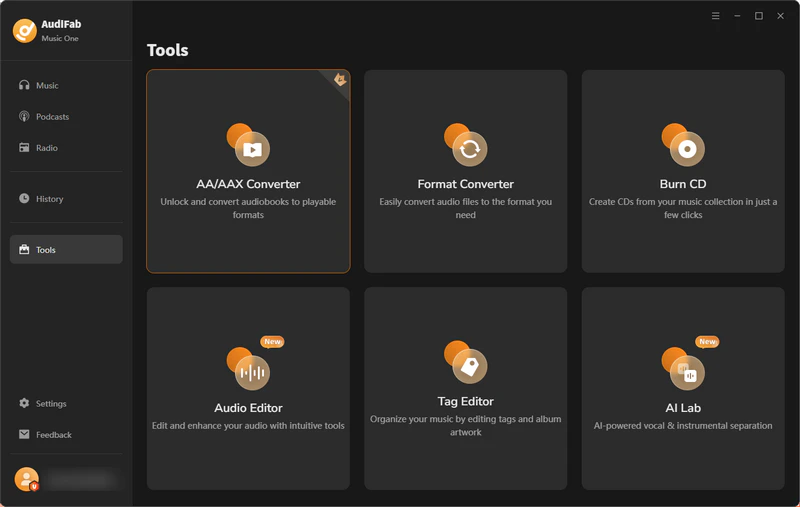
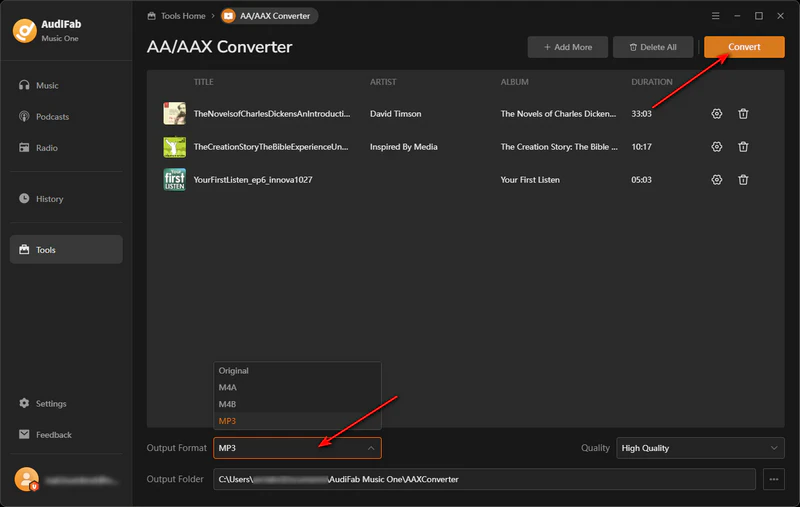
Launch AudiFab Music One, click Tools, then select AA/AAX Converter. This module is built specifically for unlocking and converting Audible audiobooks.
Add your AAX audiobooks
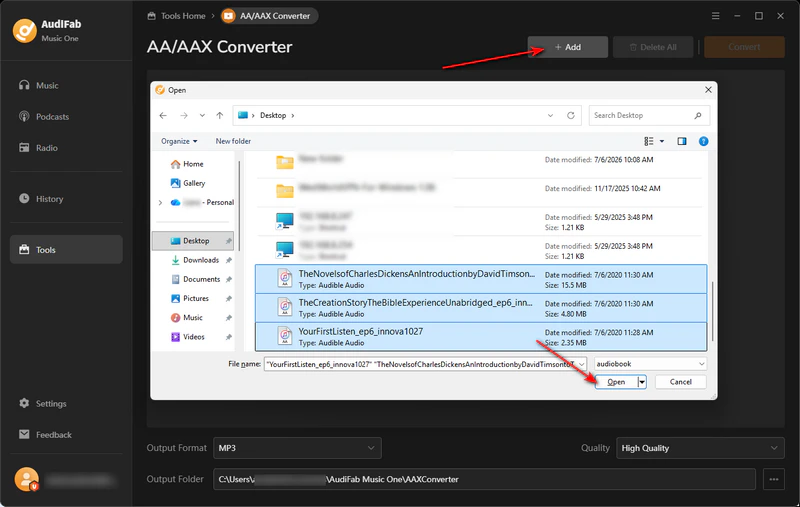
Click + Add, then select the .aax files you want to convert. You can queue multiple books at once — AudiFab displays the title, artist, album, and duration for each file before you convert.
Choose MP3 as the output format
Under Output Format select MP3, choose a quality preset such as High Quality, and set the Output Folder where the converted files will be saved.
Start the conversion
Click Convert. AudiFab unlocks the protected AAX files on its own and shows the progress of each book as it goes, with no Audible login and no activation code needed for this method. When the conversion is done, open the Output Folder to find your tagged MP3 files with cover art preserved, ready to play on any device.
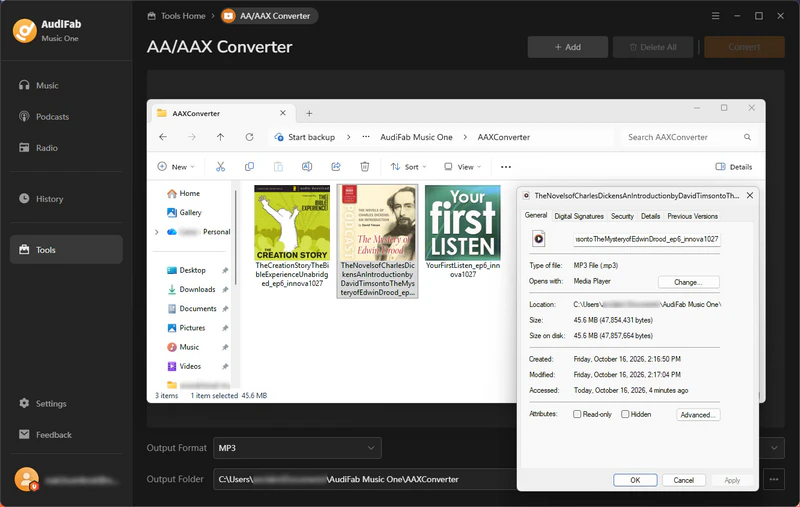
Good for: you already have AAX files and want a quick local conversion with no Audible login and no activation code hunting.
Not good for: you don't have the AAX file yet, which is what Method B is for.
This workflow is for when you have an Audible account but no AAX file yet. If you're a student, check the Audible student discount before you subscribe.
Open the built-in Audible browser
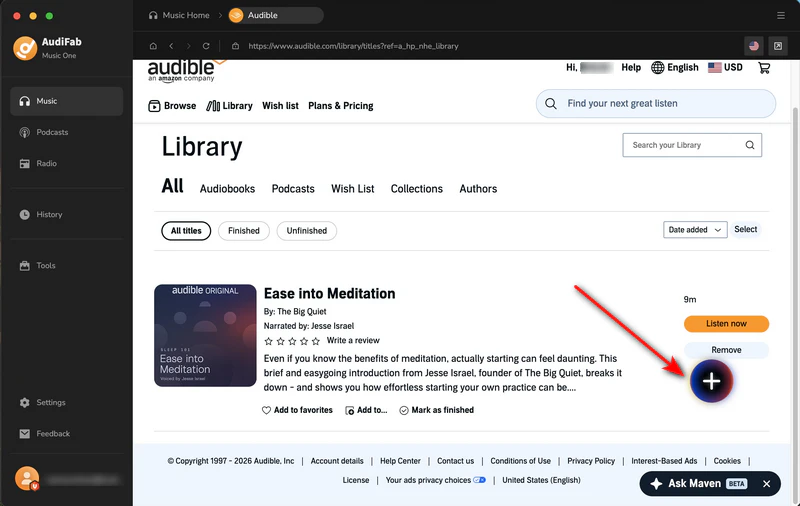
Launch AudiFab Music One and pick Music Home → Audible. The built-in browser opens your Audible library.
Set the output format
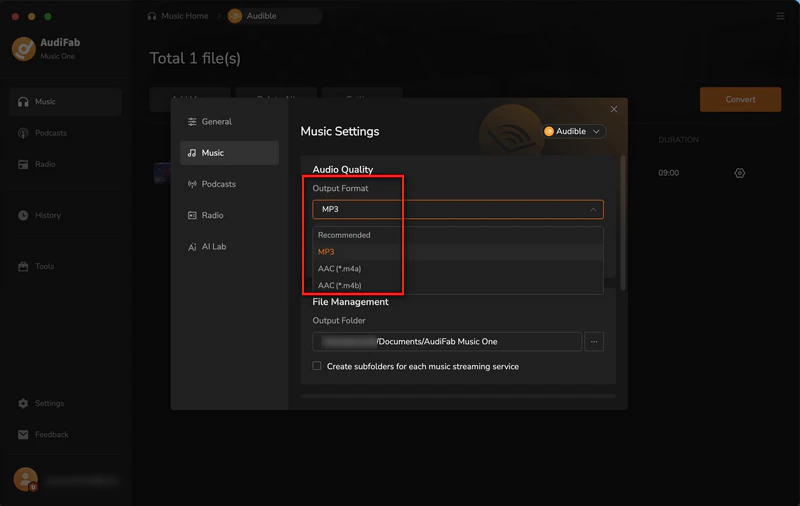
Open Music Settings and set Output Format to MP3, with AAC in .m4a or .m4b as alternatives.
Add the books and convert
Click Convert and the audiobook is downloaded from your Audible account and saved straight into your output folder, so no intermediate AAX file is ever produced.
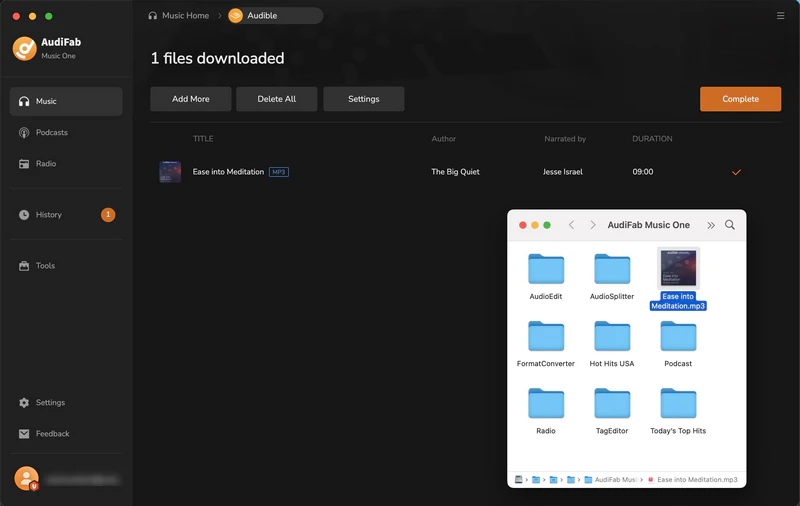
Good for: you have the book in Audible but not the file, and you want everything to happen inside one app.
Not good for: you don't have an Audible account, or you'd rather not sign in inside a third-party app.
If you already have an AAX file, start with Method A. This workflow is designed for local AAX files and does not require an Audible sign-in or activation code.
If you have an Audible account but have not downloaded the audiobook file, use Method B. This workflow requires you to sign in to Audible through AudiFab to access your library.
| Recommend Level: | ★★★★☆ |
| How To Access: | https://audible-tools.kamsker.at/ |
| Best for: | Users who want a no-install, no-upload browser tool for a single AAX file. |
Audible Tools is a single web page that does the whole job inside your browser. The AAX file is opened and converted on your own machine. You drop in one file or a whole batch, choose M4B, MP3, or FLAC, and it does the unlocking. There is nothing to install and no account to create.
There is an Expert Mode where you can paste in your 8-character activation code yourself. Chapter names survive when you output M4B. The real constraint is memory, since anything over roughly 900MB triggers a warning and long books can stall or fail because the browser runs out of room. It is an excellent option for a single book or a short batch, and I would still hand a forty-hour novel to a desktop app.
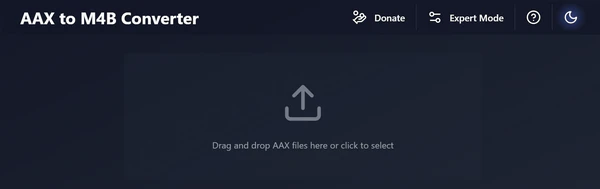
Step 1: Open audible-tools.kamsker.at in a desktop browser. Chrome or Firefox is recommended.
Step 2: Drop in your .aax files, one or several at a time, and enter your 8-character activation code when you are asked. You can also switch on Expert Mode and let the tool resolve the code instead.
Step 3: Pick M4B if you want chapters, or MP3 or FLAC if you don't, then click Convert and save the results to your chosen folder.
| Recommend Level: | ★★★☆☆ |
| How To Access: | https://mp3audioconverter.com/aax-to-mp3 |
| Best for: | Users who want to unlock a protected AAX in the browser without installing anything. |
Few online converters support protected AAX files, and MP3AudioConverter.com is one option to consider. You drop in the .aax, the site reads the container from the file signature, and then it asks for your 8-character activation code before decoding. The output is MP3 up to 320kbps, with ten files per batch at 50MB each, no account, and no watermark.
Testing it with a protected book from my own Audible library, and the MP3 came out clean with the title and author in the filename. Two limits showed up fast: the 50MB cap rules out most full-length books, and Audible's chapter navigation does not carry over. The page is also cluttered with promotion for its other converters. For a sample or a shorter book it is the most straightforward online option here, but for a ten-hour novel I would use a desktop tool.
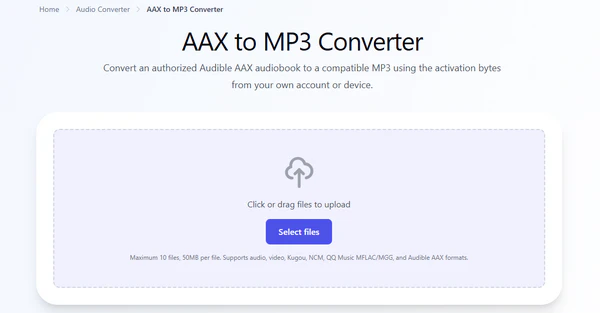
Step 1: Open the AAX to MP3 page and drop in your .aax file — up to 10 files, 50MB per file.
Step 2: When it asks for the key, enter your 8-character Audible activation code. It is used for that conversion only, and the site never requests your Audible login.
Step 3: Pick MP3 and a bitrate up to 320kbps, click Convert, then download the tagged file or grab the batch as a ZIP.
| Recommend Level: | ★★★☆☆ |
| How To Access: | https://dragdropdo.com/convert/aax-to-mp3 |
| Best for: | Users who have a very large or already-unprotected AAX file and want a quick browser conversion. |
DragDropDo is a browser-based option for files that do not require protected-AAX unlocking. Just drag your file and drop it on the page, choose what format you want, and it starts converting. Its headline feature is the 20GB maximum file size limit, bigger than most other online converters, so it is best for very large audiobooks or long recordings.
I tested it with a large, unprotected AAX file, and the conversion ran smoothly. I dropped the file in, chose MP3, and had my download a few minutes later, with no sign-up and no watermark. The one catch is that DragDropDo never asks for your 8-character Audible activation code. If you try a protected AAX file, conversion may fail, the file may not open, or the output may be incomplete or unusable. It outputs a single MP3 stream, so chapter markers and cover art will get lost in the process.
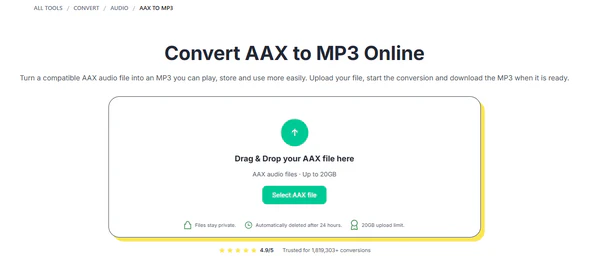
Step 1: Open the AAX to MP3 page at dragdropdo.com and drag your file onto it. The 20GB cap means almost any audiobook fits without splitting.
Step 2: Choose MP3 as the output format and let the conversion run.
Step 3: Download the converted file. Expect a single MP3 stream, so chapter markers and cover art are not carried over.
AudiFab unlocks protected AAX files locally with no activation code, keeps chapter markers and cover art, and converts straight to MP3 on Windows or Mac.
Compatible with Windows & macOS · 100% Safe & Clean · 3k+ downloads monthly · 99.9% success rate
| Recommend Level: | ★★★★☆ |
| How To Access: | https://getlibation.com/ |
| Best for: | Audible owners who want a free, open-source tool to back up their whole library to MP3. |
Libation is a free, open-source tool for downloading and backing up your Audible library. You sign in with your Audible account, it imports your library along with the cover art, and it downloads and unlocks the books straight into a folder you choose. By default, it saves audiobooks in M4B format and creates a CUE file that records chapter positions. If you prefer MP3, you can enable the MP3 output option in its settings.
What sets Libation apart is the library handling. One scan brings in every title you have bought across your marketplaces, and you can set it to work through the whole shelf automatically or take several books at a time in parallel. Your catalog can also be exported to Excel, CSV, or JSON if you would like a spreadsheet of everything you own. The trade-off is that it works through your Audible account rather than loose files, so an AAX you picked up from somewhere else will not be picked up.
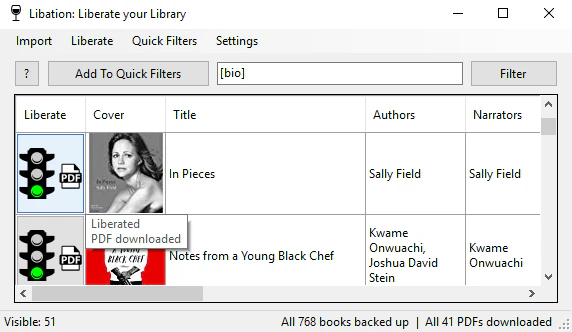
Libation works by scanning your Audible library and downloading books through your account login, so it never takes .aax files.
Step 1: Download Libation from getlibation.com, install it, and add your Audible account. The first scan asks for your password and a CAPTCHA, and after that it keeps itself up to date.
Step 2: Let the scan finish, then pick the books you want. The stoplight beside each title tells you whether it is still protected, already unlocked, or waiting to download.
Step 3: Choose M4B for the cleanest result, then run the backup. Your books land in the folder you set up, with tags, cover art, and a .cue file marking the chapters.
Good for: you have an Audible account and want to download and convert your whole library in one free tool.
Not good for: you have a .aax file from another source and want to convert it locally, because Libation cannot import external files at all. Use AudiFab Method A or AAX Audio Converter instead.
| Recommend Level: | ★★★☆☆ |
| How To Access: | https://github.com/audiamus/AaxAudioConverter |
| Best for: | Windows users who have .aax files and want a free, fast converter with chapter splitting. |
AAX Audio Converter is a free Windows program published on GitHub under the GPL. It supports several output formats and offers useful chapter-splitting options, including one file per book, one file per chapter, and shorter tracks split by length. It also handles audiobooks stored in multiple parts.
Two things keep it from being a perfect recommendation. It needs Windows 10 or newer, and there has been no release since version 1.18.2 in September 2023. Set against that, its free, open-source model, batch conversion, and flexible chapter-splitting options remain its biggest strengths. The program may still suit users who need a straightforward local converter, but its release history is worth considering before choosing it for a long-term workflow.
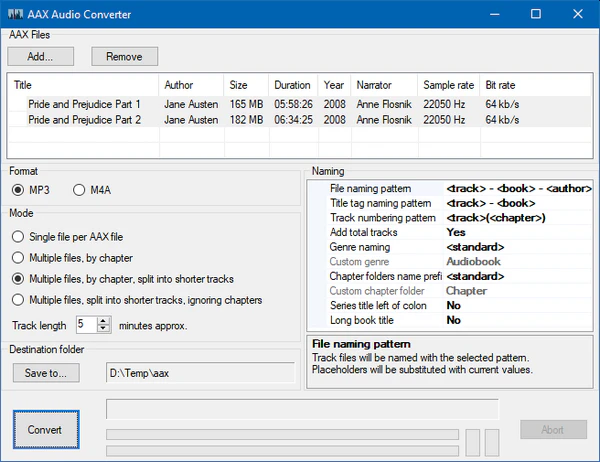
Step 1: Download the latest release from the GitHub page and install it. Windows 10 or newer is required.
Step 2: Enter your Audible activation code in the settings if the program asks for one. The built-in help explains where to find it, and any code works for books downloaded through Book Lib Connect.
Step 3: Drag your .aax files in, choose MP3 and the processing mode you want, then click Convert and open the output folder to collect the results.
Pick the converter that matches what you have right now.
These converters are built for Audible AAX files. If your audiobooks are on Spotify instead, follow the steps to download Spotify audiobooks to MP3, or start with the no-cost titles when you listen to free audiobooks on Spotify.
Most converters can output more than MP3, and the choice mostly comes down to where you plan to listen. Here is how the three common formats compare.
| Format | Where it plays | Chapters | File size | Pick it when |
|---|---|---|---|---|
| MP3 | Everywhere, from car stereos to cheap MP3 players | Only if the converter writes them | The largest of the three | You want one file that works on any device |
| M4B | Apple Books and most audiobook apps | Yes, with bookmarks and resume | About half the size of MP3 | You listen in Apple Books and want chapters |
| M4A | Apple devices and most modern phones | Rarely | About half the size of MP3 | You want a small file and do not care about chapters |
For spoken word, 128kbps MP3 sounds perfectly good, and 192kbps is even nicer. Bitrate makes more difference here than the file format. One important note before choosing MP3: chapter breaks only carry over if the tool saves them properly, so double-check your exported file. If chapters are a priority for you, go with M4B. If you just want one file that works on any player, MP3 is still your best bet.
Check the file extension and confirm that your converter supports that format. AAX and AAXC are related Audible audiobook formats, but not every tool supports both. If you have an AAX file, try selecting it directly from your Audible download folder. If the converter still cannot open it, check whether it supports your file's protection and authorization requirements before trying another tool.
AAX files from Audible are encrypted to your account. A converter needs your Audible login or activation code to get the key and decrypt the audio. If you'd rather skip codes and logins entirely, use AudiFab — no activation code and no Audible sign-in are needed.
Not every converter writes chapters. Libation and AudiFab keep chapter markers, titles, and cover art by default. MP3AudioConverter.com and DragDropDo return a single MP3 stream, so the chapter list is lost.
Lower the MP3 bitrate in the converter's output settings (192kbps is a good balance for audiobooks; 128kbps is smaller but audibly softer). Alternatively export as M4B, which is AAC-based and noticeably smaller than MP3 at equal quality.
Very long audiobooks can time out in browser-based tools. Audible Tools warns above 900MB and can run out of browser memory, while the 50MB free limit on MP3AudioConverter.com stops a full-length book from uploading at all. Outdated open-source tools can also struggle with newer files. Switch to a desktop converter, split the book, or update the tool before retrying.
Yes. Audible Tools works in your browser and handles batches, but needs your activation code. MP3AudioConverter.com also works on protected files, though its free tier caps each file at 50MB. DragDropDo accepts huge files up to 20GB but cannot unlock a protected book. For long protected books, a desktop converter like AudiFab is the reliable choice.
Libation and AudiFab can write your chapter markers and cover art into the output by default. The online tools work the other way — MP3AudioConverter.com and DragDropDo produce a single MP3 stream, so the chapter markers are gone.
The official Audible app and Apple Books play AAX files natively on authorized devices. Most other players, including VLC, cannot play protected AAX files without conversion. You need to convert AAX files to MP3 or M4B first with a third-party tool, then open the converted file in any media player.
It depends on the tool and workflow. AudiFab is designed to convert supported local AAX files without an Audible activation code. Libation uses Audible account access, while AAX Audio Converter and some online converters may require an activation code. DragDropDo does not unlock protected audiobooks, so it is suitable only for files it can process without that step.
MP3 plays on almost every device, including car stereos and cheap MP3 players. M4B has built-in chapters, resume, and smaller file sizes, but works mainly on Apple devices. Choose MP3 for compatibility, M4B for Apple Books.
The best AAX to MP3 converter depends on what you have. Already own the AAX file? AudiFab is the smoothest route on Windows and Mac. Only have an Audible account? Libation is the best free pick, handling sign-in, download, and conversion in one place. For one MP3 per chapter on Windows, choose AAX Audio Converter. For a browser, Audible Tools and MP3AudioConverter.com work with an activation code, while DragDropDo suits very large or unprotected files but cannot unlock a protected book.

Best all-in-one tool to download from Spotify, Apple Music, Amazon Music, Tidal, Deezer, YouTube Music & more to MP3/AAC/FLAC/WAV/ALAC/AIFF.
Music is the greatest communication in the world and here are some articles that may help you enjoy music in a better way.

 Try It Free
 Try It Free