Best Tool to Burn Spotify Playlist to CD on Mac or Windows
Burn your Spotify playlists into CDs in just 6 easy steps with AudiFab Spotify Music Converter.
Burn your Spotify playlists into CDs in just 6 easy steps with AudiFab Spotify Music Converter.
Need to play your Spotify music in the car or on a home stereo without an internet connection? Burning a Spotify playlist to a CD is the perfect solution. Since Spotify does not provide a built-in option to burn CDs, even for paid subscribers, you will need a reliable Spotify to CD converter, like AudiFab.
AudiFab Spotify Music Converter does more than just download and convert your Spotify playlists to MP3—it also features a built-in CD burner for a one-stop experience. Read on to discover how to easily burn Spotify music to CD with AudiFab in just a few clicks.
AudiFab Spotify Music Converter helps you download Spotify tracks, albums, playlists, podcasts, and radios locally. Regardless of whether you are a Spotify Premium user or a Spotify Free user, you can use it to convert Spotify music to MP3/AAC/WAV/FLAC/AIFF/ALAC. It also enables you to convert your local audio files to MP3/M4A/FLAC/WAV/OGG/AIFF, burn Spotify music to CD, edit the ID3 tags, or export Spotify music to iTunes/ Music App.
One of the best benefits of using AudiFab is that you can play the converted Spotify music on any device without restrictions. It preserves the original audio quality (up to 320kbps MP3 / 24-bit Lossless FLAC), keeps ID3 tags intact, and maintains the original playlist order after conversion.
AudiFab Spotify Music Converter is a very easy-to-use tool. In the following tutorial, we would show you how to convert Spotify playlists to MP3 format and burn them to a CD with 6 easy steps using AudiFab.
Open AudiFab Spotify Music Converter
Open AudiFab and choose the 'Spotify App' conversion mode (recommended for Windows). AudiFab will then automatically launch the Spotify app for you.
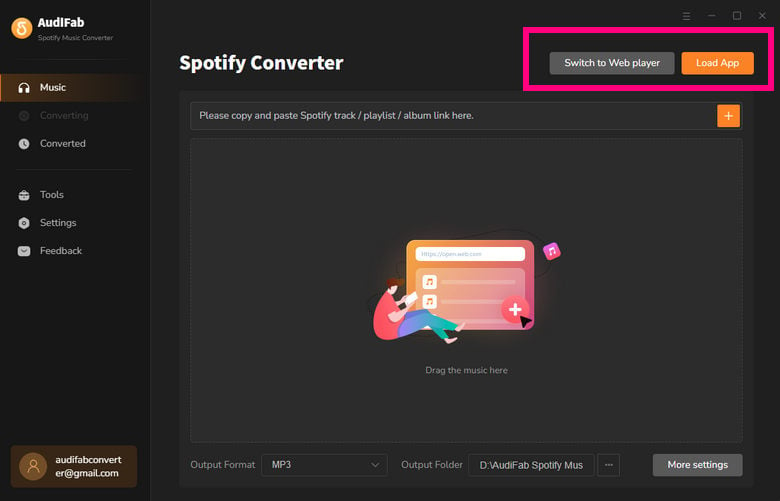
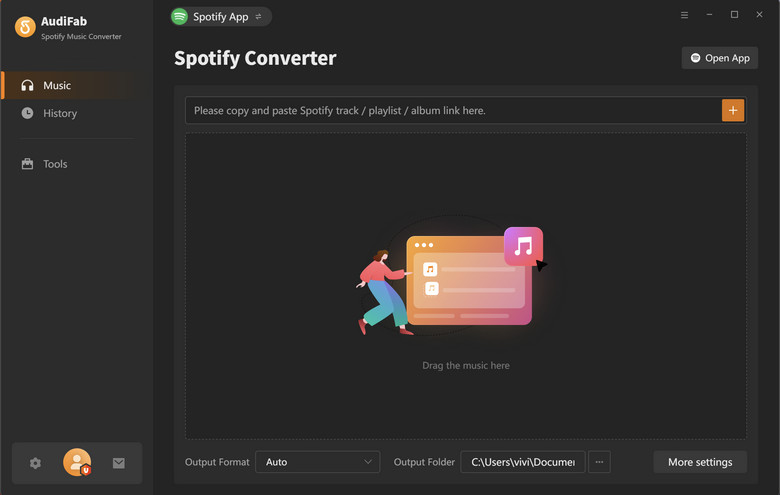
Note: AudiFab needs to work with the Spotify app at the same time. Please do not operate the Spotify app when you are using AudiFab.
Add a Playlist from Spotify to AudiFab.
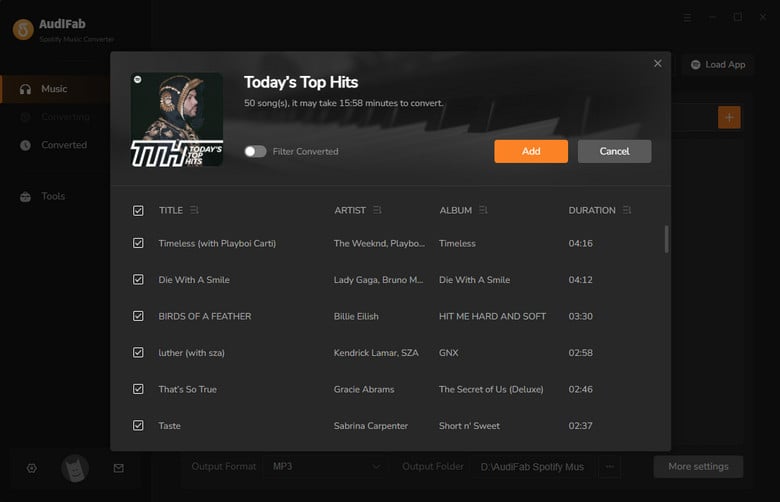
Simply drag and drop any playlist, album, or track from the Spotify app into AudiFab. The program will automatically analyze the songs and list them for you. By default, all tracks are selected for conversion. If there are any songs you'd like to skip, just uncheck them before clicking the "Add" button.
Choose MP3 as the output format.
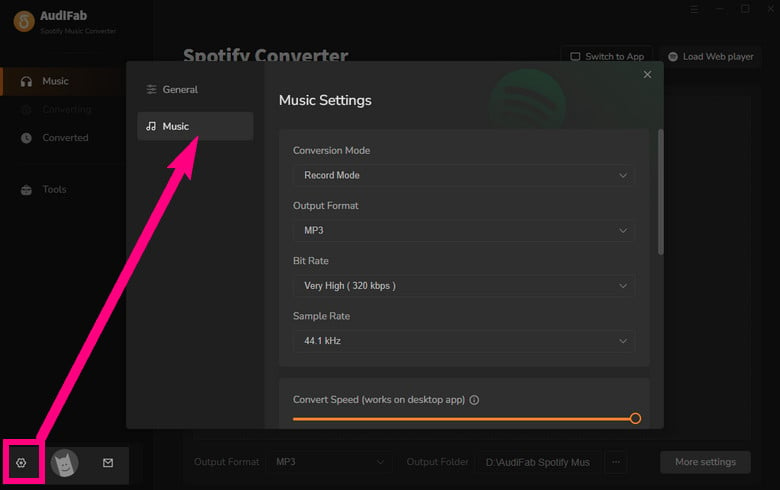
Now that the music files have been imported, it's time to adjust some advanced settings before converting Spotify music. To burn your Spotify music to a CD, we recommend selecting MP3 as the output format. You can also adjust audio quality (up to 320kbps), choose an output folder, and organize your files. Close the Settings window to apply your changes.
Tips: To download a Spotify playlist into a playlist folder and keep the original order, select "Playlist Index" under Output File Name and choose "None" in the Output Organized section.
Convert Spotify music to MP3 format.
Click the Convert button and AudiFab would immediately start exporting the Spotify music to plain MP3 tracks to your local computer.
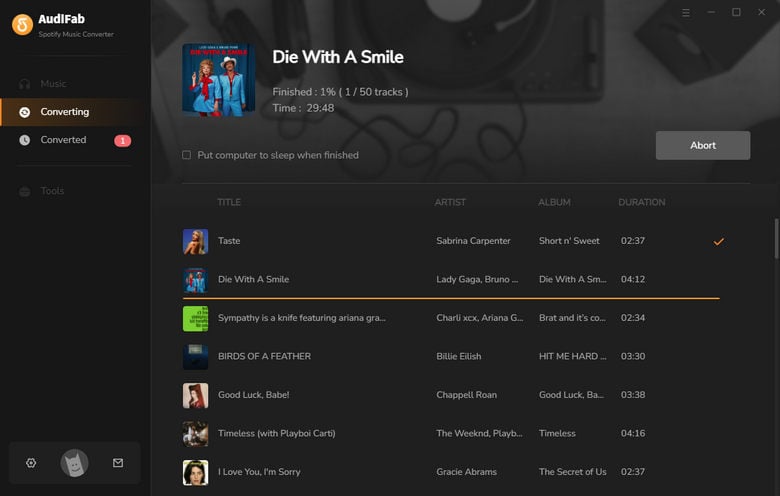
Find the MP3 downloads on the local drive.
Once the conversion is finished, go to the output folder set in Step 3 and you can find all the Spotify downloads on your local drive.
Tips: You can also click the Converted tab to locate converted files.
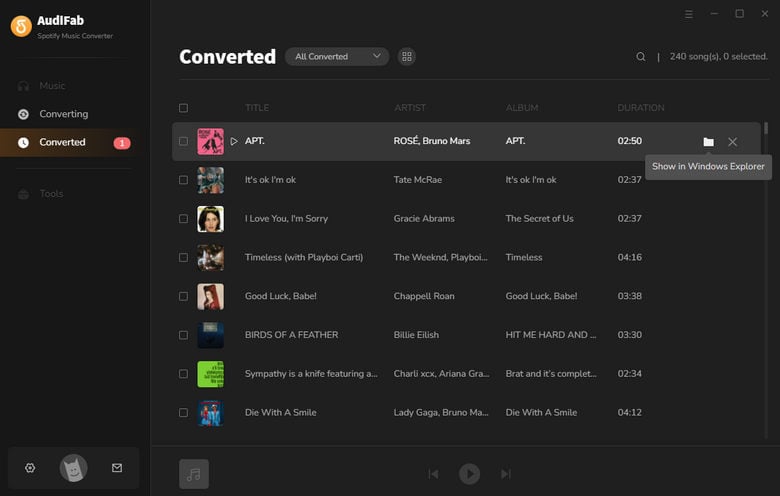
Burn Spotify Playlist to CD on Windows or Mac
Now that you’ve got Spotify music as .mp3 files, you can burn them to a CD with any CD Burner. Next, we are going to introduce how to continue using AudiFab CD burner to burn Spotify playlist to CD.
1) Insert a blank CD into your computer.
2) Go to the Tools section in AudiFab Spotify Music Converter.
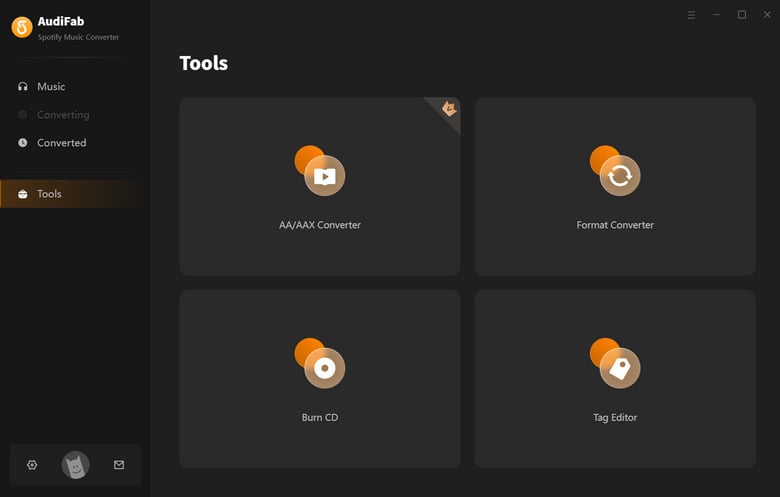
3) Select Burn CD. Then click the "+Add“ button to locate and add the Spotify playlist from your local computer.
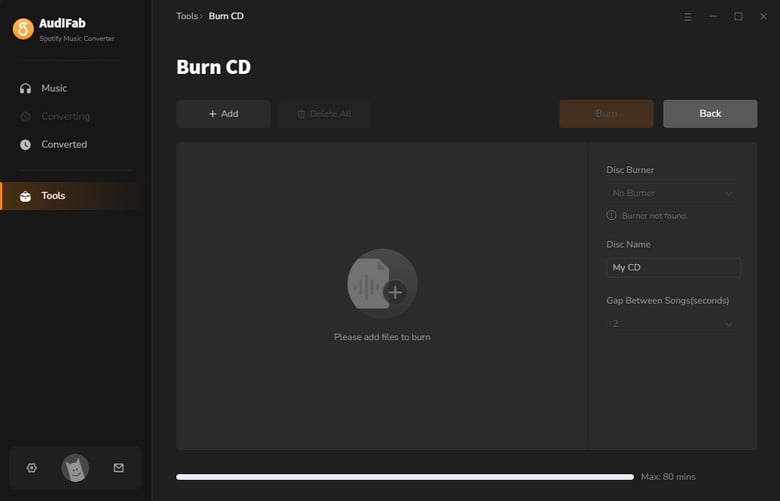
4) Rename the Disc name if needed. And press the Burn button to start burning the Spotify playlist to your CD.
Can I burn a CD from Spotify for free?
Yes. While Spotify itself doesn't offer a burning feature, you can use AudiFab Spotify Music Converter to download your playlists as MP3 files with either a Spotify Free or Premium account. Once you have the local files, you can use AudiFab’s built-in tool to burn them to a CD for free.
Is it legal to burn Spotify music to a CD?
It is generally legal for personal use. Under the principle of "fair use," you can convert and burn music for private listening, such as playing it in your car or at home. However, it is strictly prohibited to sell, distribute, or use the burned CDs for commercial purposes.
What is the best format for burning Spotify to CD?
For a standard Audio CD that plays in any car or home stereo, MP3 (at 320kbps) is the most compatible and popular choice. If you are an audiophile looking for CD-quality sound, AudiFab also supports exporting to WAV or FLAC for a lossless burning experience.
Why can't I just drag songs from the Spotify app to a CD burner?
Spotify music is protected in Ogg Vorbis format, which is only readable by the Spotify app. To burn them to a CD, you must first use a tool like AudiFab to convert them into a standard format like MP3.
If you're looking to burn your Spotify playlists to a CD, there's no better way to do it than with a Spotify Music Converter. With AudiFab Spotify Music Converter, you can download your playlists from Spotify as MP3 files, which can then be burned to a CD with the app's built-in additional tools. The converter will preserve all of the original audio quality, so you'll be able to enjoy your music at its best. Plus, it's easy to use and you don't need to use any additional CD-burning software.
AudiFab Spotify Music Converter is free to try. It can be downloaded for free and converts the first minute of each audio file for sample testing. If the program meets your need, you can buy a license to unlock the time limit.

Convert Spotify songs, playlists & podcasts to MP3/AAC/FLAC/WAV at up to 40X speed. Keep original quality & ID3 tags.
Music is the greatest communication in the world and here are some articles that may help you enjoy music in a better way.

 Download
 Download