YouTube Music doesn't let you burn songs directly to CDs, even with Premium offline downloads. To make a playable CD, you'll first need compatible YouTube Music MP3 or WAV files. This guide shows you how to download YouTube Music songs and playlists, then burn YouTube Music to CD using three methods on Windows or Mac.
Related Articles: How to Burn Spotify Music to CD | How to Burn Apple Music to CD
This article is strictly for informational use. Please ensure you have the appropriate rights or permissions before converting or saving any media content for personal, non-commercial offline playback.
What Do You Need to Burn YouTube Music to CD?
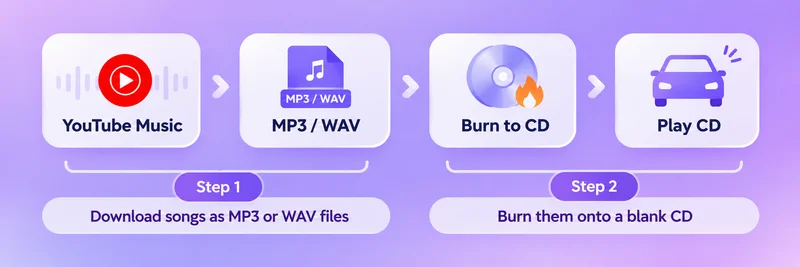
Burning YouTube Music to a CD takes two main steps: download YouTube Music songs as MP3 or WAV files, then burn them onto a blank CD using CD burning software. Before getting started, make sure you have the following tools and equipment.
💡 What You'll Need:
| A Windows PC or Mac | Equipped with a writable CD/DVD drive, or connected to an external USB CD/DVD burner. |
| A YouTube Music Converter | Use AudiFab YouTube Music Converter to save YouTube Music songs and playlists as MP3 or WAV files. |
| CD Burning Software | AudiFab YouTube Music Converter's built-in Free CD burner, Windows Media Player Legacy (Windows), or Apple Music (Mac). |
| A Blank CD-R | Recommended for better compatibility with most car stereos and standard CD players. |
Once you're ready, let's start by downloading your YouTube Music songs and playlists for CD burning.
Step 1. Download YouTube Music Playlists for CD Burning
Since YouTube Music's offline downloads can't be burned directly to CDs, you'll first need to save your YouTube Music songs and playlists as MP3 or WAV files.
AudiFab YouTube Music Converter makes this easy by supporting batch downloads in MP3 or WAV, and other formats while preserving source audio quality and ID3 tags. Plus, its free built-in CD burner lets you burn downloaded YouTube Music playlists to CD without installing additional burning software.
AudiFab YouTube Music Converter – Download YouTube Music and Burn Playlists to CD
- YouTube Music to CD: Download YouTube Music songs and playlists as MP3 or WAV, then burn them to CD with the built-in free CD burner.
- Batch Downloads & Multiple Formats: Save entire YouTube Music playlists in MP3, FLAC, AAC(M4A), WAV, and more without downloading songs one by one.
- Audio Quality & ID3 Tags: Keep source quality, metadata, and cover art.
Compatible with Windows & macOS · 100% Safe & Clean · 3k+ downloads monthly · 99.9% success rate
 Try It Free
 Try It Free
Follow these steps to download your YouTube Music playlists:
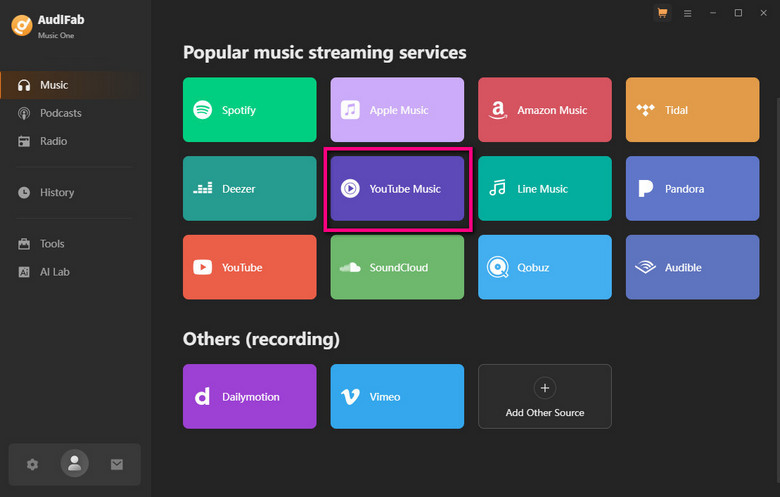
Action 1Install and launch AudiFab YouTube Music Converter. Select "YouTube Music" from the homepage.
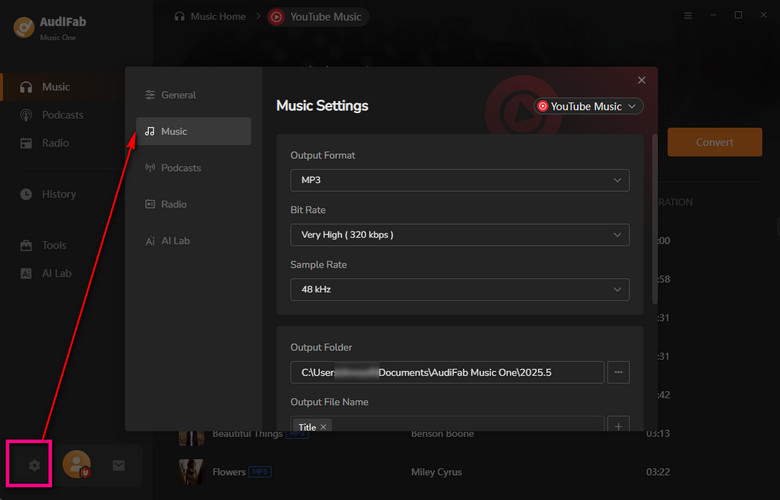
Action 2Click "Settings" in the bottom-left corner. Choose "MP3" or "WAV" as the output format and select a folder to save your music.
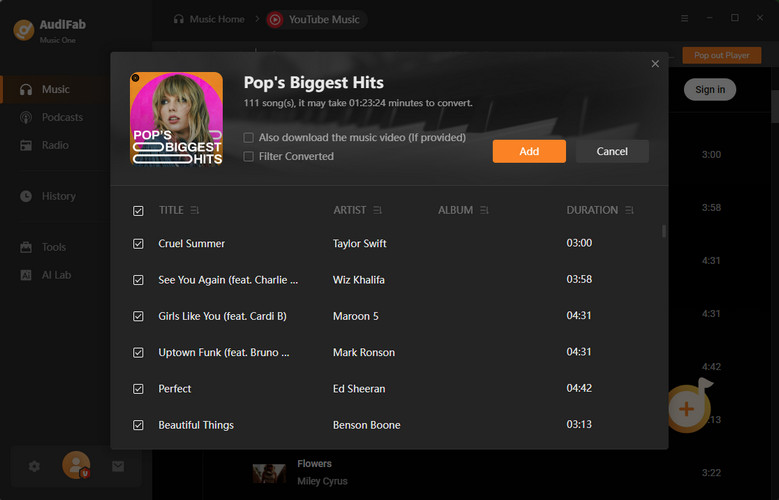
Action 3Find the YouTube Music songs, albums, or playlists you want to burn to CD. Click the "+" button in the bottom-right corner, then select "Add" to confirm.
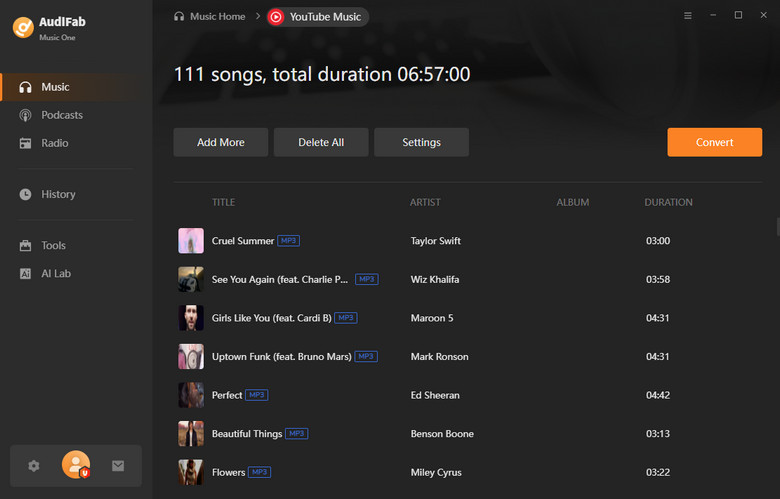
Action 4Click "Convert" in the top-left corner to start downloading your selected music as MP3 or WAV files.
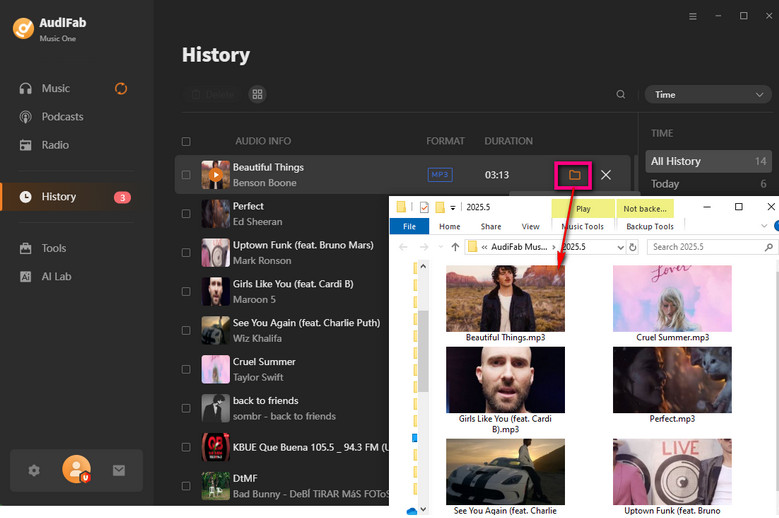
Action 5Once the conversion is complete, go to "History" to locate your downloaded audio files, ready for burning your YouTube Music playlists to a CD.
Step 2. Burn YouTube Music to CD on Windows or Mac
❓ Which CD Burning Method Should You Choose?
| Method | Platform | Best For | Requirements / Limitations |
|---|---|---|---|
| AudiFab Built-in CD Burner | Win / Mac | All-in-one music downloading & CD burning | Requires AudiFab |
| Windows Media Player Legacy | Windows | Free Audio CD burning | Legacy version required |
| Apple Music | Mac | Free built-in CD burning | Requires importing songs & creating a playlist |
💡 Our recommendation:
Choose AudiFab for a convenient all-in-one solution to download YouTube Music and burn CDs with its free built-in CD burner. Alternatively, use Windows Media Player Legacy on Windows or Apple Music on Mac if you prefer your system's built-in tools.
Method 1: Use AudiFab Free CD Burning Tool (Windows & macOS)
Action 1Insert a blank CD into your computer.
Action 2Open AudiFab YouTube Music Converter and go to the "Tools" section.
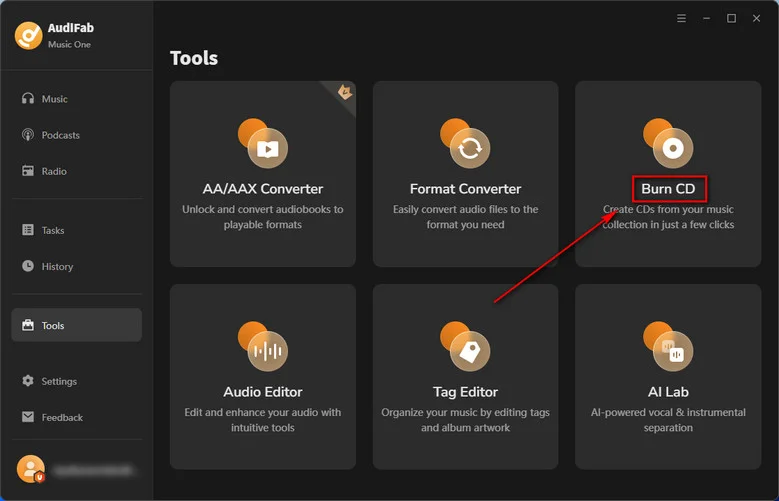
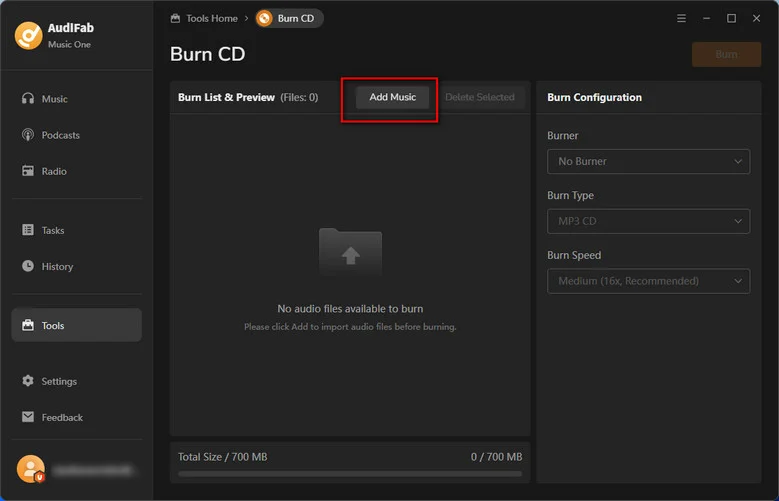
Action 3Select "Burn CD", then click "Add" or drag and drop the songs you want into the burner. You can rearrange the song order if needed.
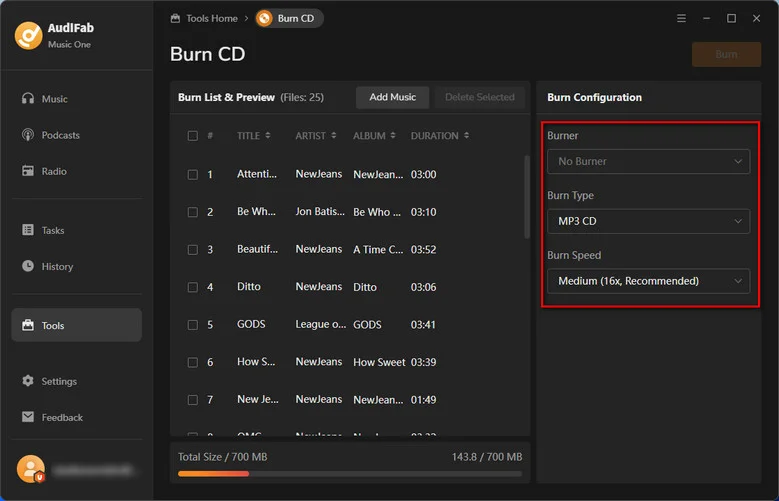
Action 4In the right panel, select your preferred "Burn Type" and burning speed. Choose "Audio CD" for standard CD players or "MP3 CD" for compatible devices.
Action 5Click "Burn" and wait for the process to finish. Your YouTube Music songs will be written to the CD.
Method 2: Use Windows Media Player Legacy for Burning Audio CD (Windows)
Action 1Open Windows Media Player Legacy.
Action 2Insert a blank CD-R into your disc drive.
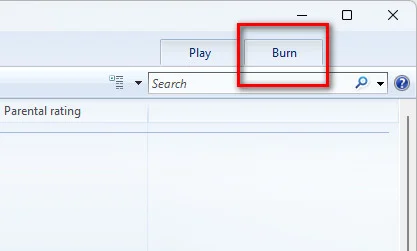
Action 3In the upper-right corner of the Player Library, click the "Burn" tab.
Action 4Open Burn options and select "Audio CD". Choosing "Data CD or DVD" instead creates a data disc that requires a compatible player to read the audio files.
Action 5Add your downloaded YouTube Music files to the Windows Media Player library if they aren't already listed. Then drag the songs into the burn list on the right.
Action 6Check the total time. A standard Audio CD holds about 80 minutes.
Action 7Click "Start burn" and wait until the process finishes. When it's done, the disc will usually eject automatically.
Note: On Windows 11, use Windows Media Player Legacy, not the newer Media Player app. If it's missing, go to "Settings" → "System" → "Optional features" → "View features" and search for Windows Media Player Legacy.
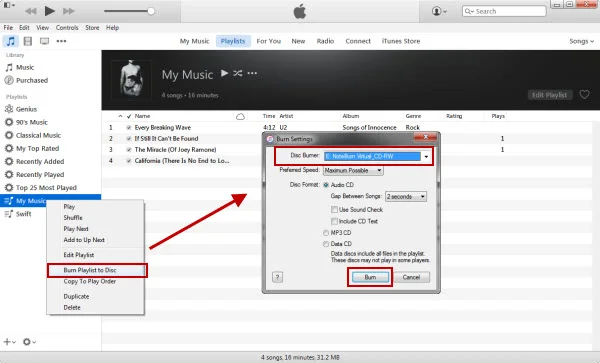
Method 3: Burn YouTube Music to CD with Apple Music (macOS)
Note: Import your downloaded YouTube Music files into the Music app first. Apple Music subscription downloads cannot be burned directly to CD.
Action 1Open the Music app and go to "File" → "Import" (or press "Command + O").
Action 2Locate the folder containing your downloaded YouTube Music songs, select the music files or the entire folder, and click "Open". The songs will be added to your Apple Music library.
Action 3Click "File" → "New" → "Playlist", then drag the imported YouTube Music songs into this playlist.
Action 4Insert a blank CD-R and select the YouTube Music playlist you just created.
Action 5Go to "File" → "Burn Playlist to Disc". Choose "Audio CD", customize the burning settings if needed, and click "Burn" to start.
Download YouTube Music songs and playlists as MP3 or WAV, then burn them to CD with AudiFab's free built-in CD burner. No extra burning software needed!
Compatible with Windows & macOS · 100% Safe & Clean · 3k+ downloads monthly · 99.9% success rate
Audio CD vs. MP3 CD: Which Should You Choose?
💡 Our recommendation:
- Choose an Audio CD for the widest compatibility, especially with older car stereos.
- Choose an MP3 CD if your player supports MP3 discs and you want to fit more songs on one disc.
| Feature | Audio CD | MP3 CD |
|---|---|---|
| Best For | Cars and standard CD players | MP3-compatible CD players |
| Capacity | Up to 80 minutes | Around 700 MB (often 100+ MP3s) |
| Compatibility | Most standard CD players | Requires MP3 CD support |
| Main Limitation | Fewer songs per disc | May not play on older CD players |
FAQs About Burning YouTube Music Playlists to CD
Q1 Can I download YouTube Music to MP3 for free?
No, YouTube Music doesn't offer free official MP3 downloads. You can use a third-party tool such as AudiFab YouTube Music Converter or a free online YouTube Music to MP3 converter, subject to their limitations and applicable usage rights.
Q2 How can I burn a CD without a built-in CD drive?
Use an external USB CD/DVD burner connected to your computer.
Q3 Why won't my burned CD play in my car?
You may have burned it as a Data CD instead of an Audio CD, or the disc may be incompatible with your car stereo.
Q4 How many YouTube Music songs can fit on a CD?
A standard Audio CD holds about 74–80 minutes of music, usually 15–25 songs depending on their length. An MP3 CD can hold 100+ songs, depending on file size and audio bitrate.
Q5 Can I add more songs to a CD after burning it?
Usually not for a finalized Audio CD. Once finalized, you can't add more songs. Some data CD-R discs support adding files in multiple sessions, provided the disc remains open and has enough free space.
Summary
Burning YouTube Music to CD is straightforward once you have the right audio files and a writable CD drive. AudiFab YouTube Music Converter helps you prepare songs and playlists as MP3 or WAV files and offers a built-in CD burning tool. Alternatively, you can use Windows Media Player Legacy or Apple Music to create your disc. For the widest compatibility with car stereos and standard CD players, choose an Audio CD.
Note: AudiFab is free to try—download it to convert the first minute of any audio. Buy a license to remove the limit.
AudiFab – Download YouTube Music & Burn CDs
Download YouTube Music songs, albums, and playlists as local files for easy CD burning.
MP3, FLAC, WAV & more. Free built-in CD burner. Audio quality & ID3 tags preserved.